Every channel on one page — WhatsApp and the MCP links included
Each business's channels page now opens with "All channels" — one tile for every channel the business can use, with its status (connected, off or not connected) and the account that is linked. WhatsApp and the Telegram, Instagram, Messenger and X accounts are connected and managed right there, so you no longer have to go to another page for them.
Product update 2 min read
What changed
- Every channel in one place. The channels page has a new All channels card at the top: messengers (website chat, WhatsApp, Telegram Business, Telegram bots, Bale, Eitaa, Rubika, Soroush Plus, Telegram groups, Divar chats…), accounts through Nabux gateways, inbox links and MCP, phone and SMS, email, and websites, stores and portals. Each tile says Connected, Off or Not connected, and names the account when one is linked.
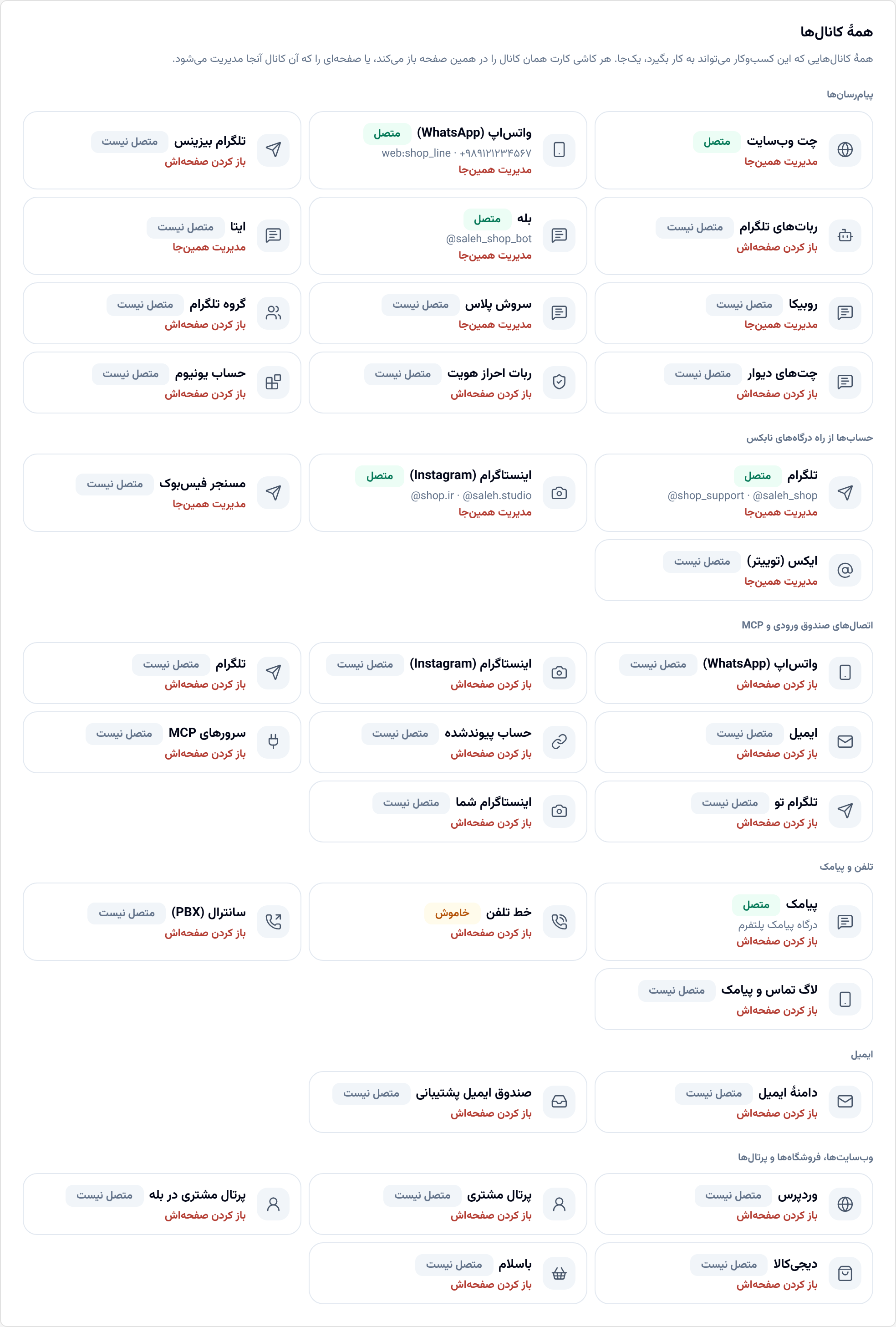
- One click to where it is managed. A tile marked Manage here takes you to that channel's card on the same page; the others open their own page with Open its page.
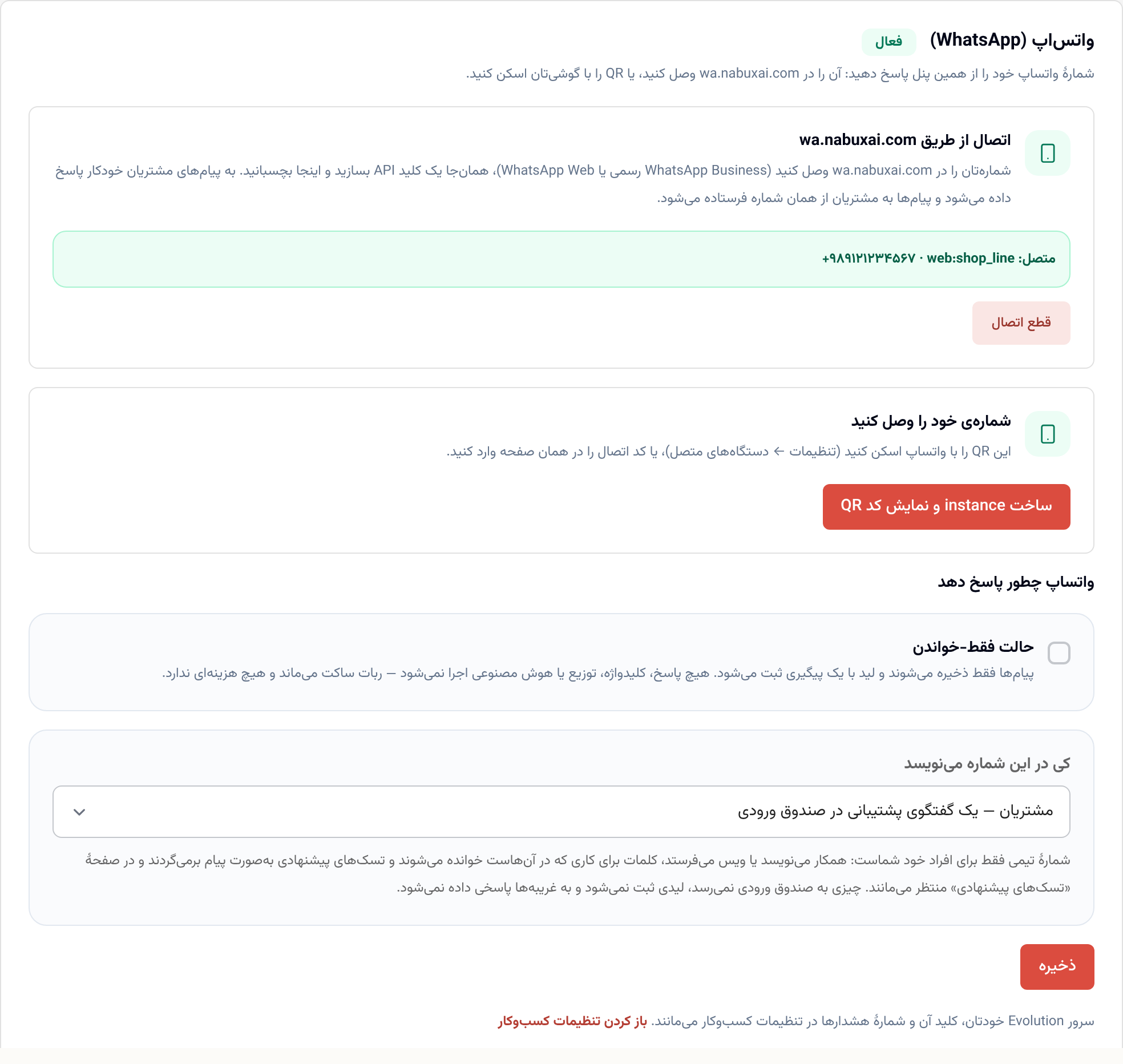
- WhatsApp right here. The WhatsApp card is now on the channels page: Connect through wa.nabuxai.com with an API key, or create the instance and scan a QR with your phone. Below it, How WhatsApp answers sets read-only mode and who writes on the number (customers, the team's work notes or the console) — press Save.
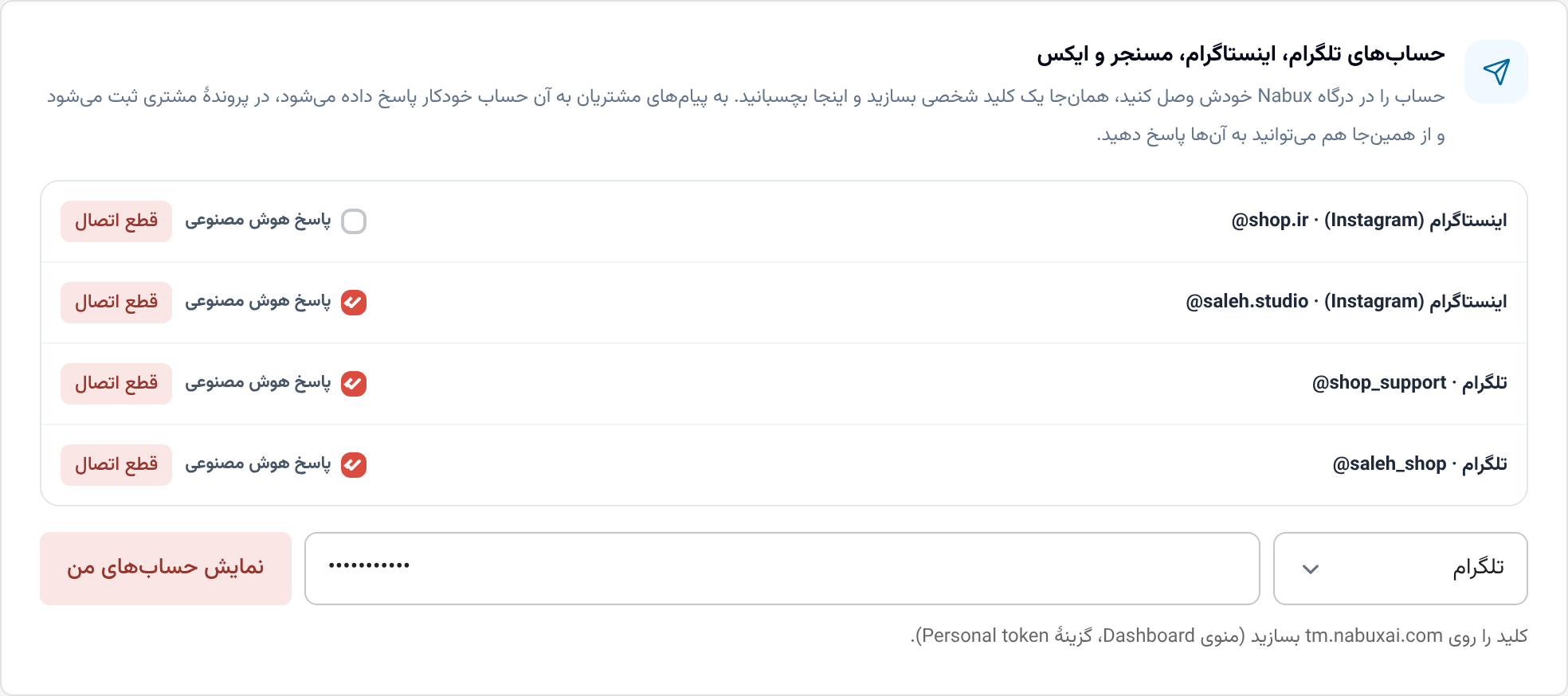
- Telegram, Instagram, Messenger and X accounts right here. The card from the business settings is on the channels page too; connecting, the AI answers switch and disconnecting work the same on both pages.
- Business settings show the same. The WhatsApp and gateway cards stay in the business settings and do the same thing, and the All channels button at the top of that page takes you to the channels page.
How to use it
- Open Messaging channels from the menu and pick the business (or press All channels in the business settings).
- In the All channels card, see which channels are connected and which are not.
- Press the tile of the channel you want: Manage here takes you to its card on this page; otherwise its own page opens.
- For WhatsApp, paste the API key from wa.nabuxai.com, press Show my numbers, then Connect this number — or press Create the instance and show the QR code and scan the QR with your phone.
Good to know
- Only the business owner or an admin can connect or change a channel; other colleagues see the statuses.
- Your own Evolution server, its key and the alert number are still in Business settings → WhatsApp.
- A tile shows this business's status only, and never a key or a token.