Let AI suggest automations and work for your business
Analyze your business to create an automation without writing its conditions. Task suggestions and playbooks now use the same business description and shared knowledge.
Product update 1 min read
What changed
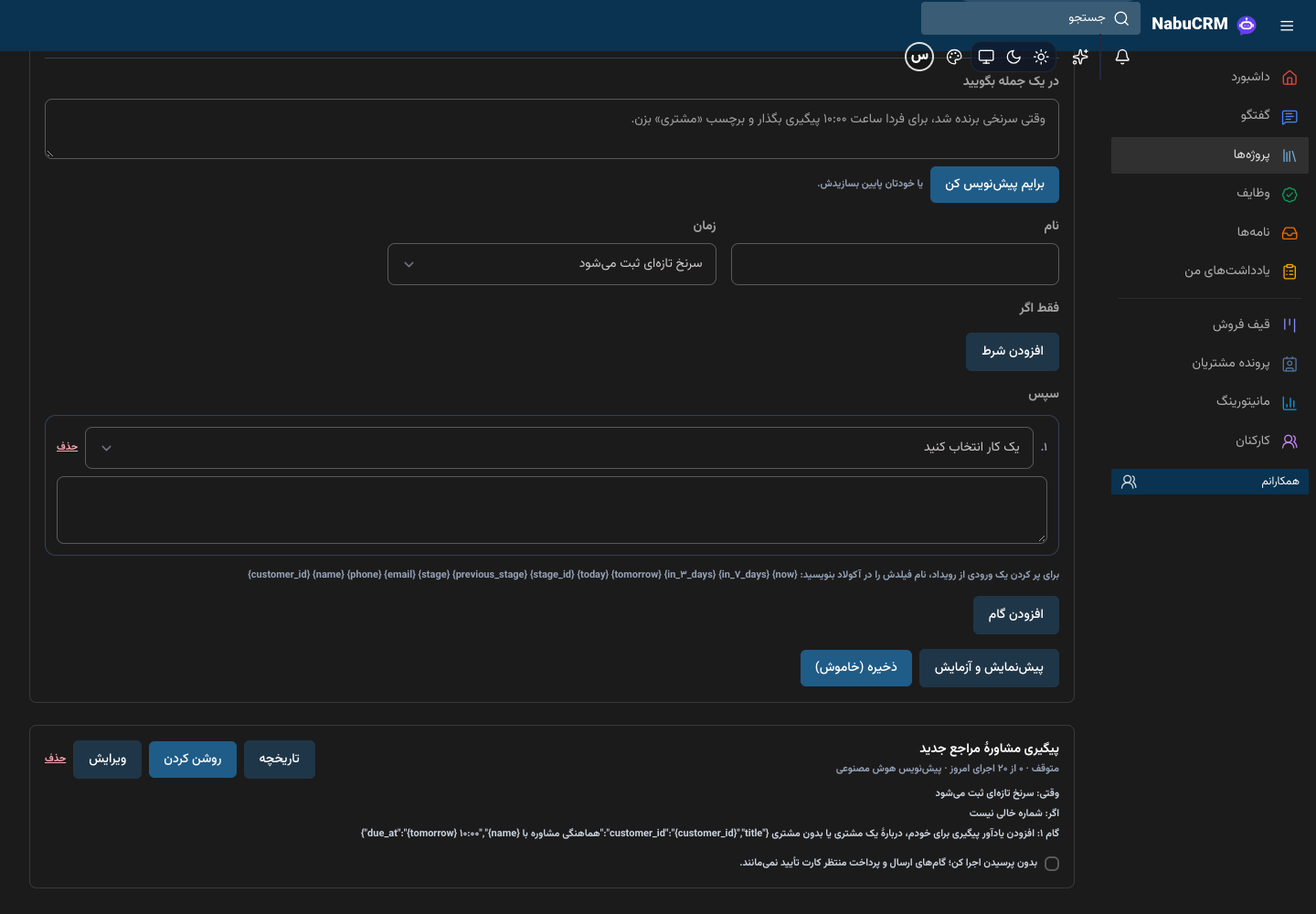
Automations now offers Analyze and create an automation. AI reads the current business's description and shared knowledge, then chooses a useful trigger, conditions and actions from the tools your account may use. Each click creates one validated rule, switched off for review.
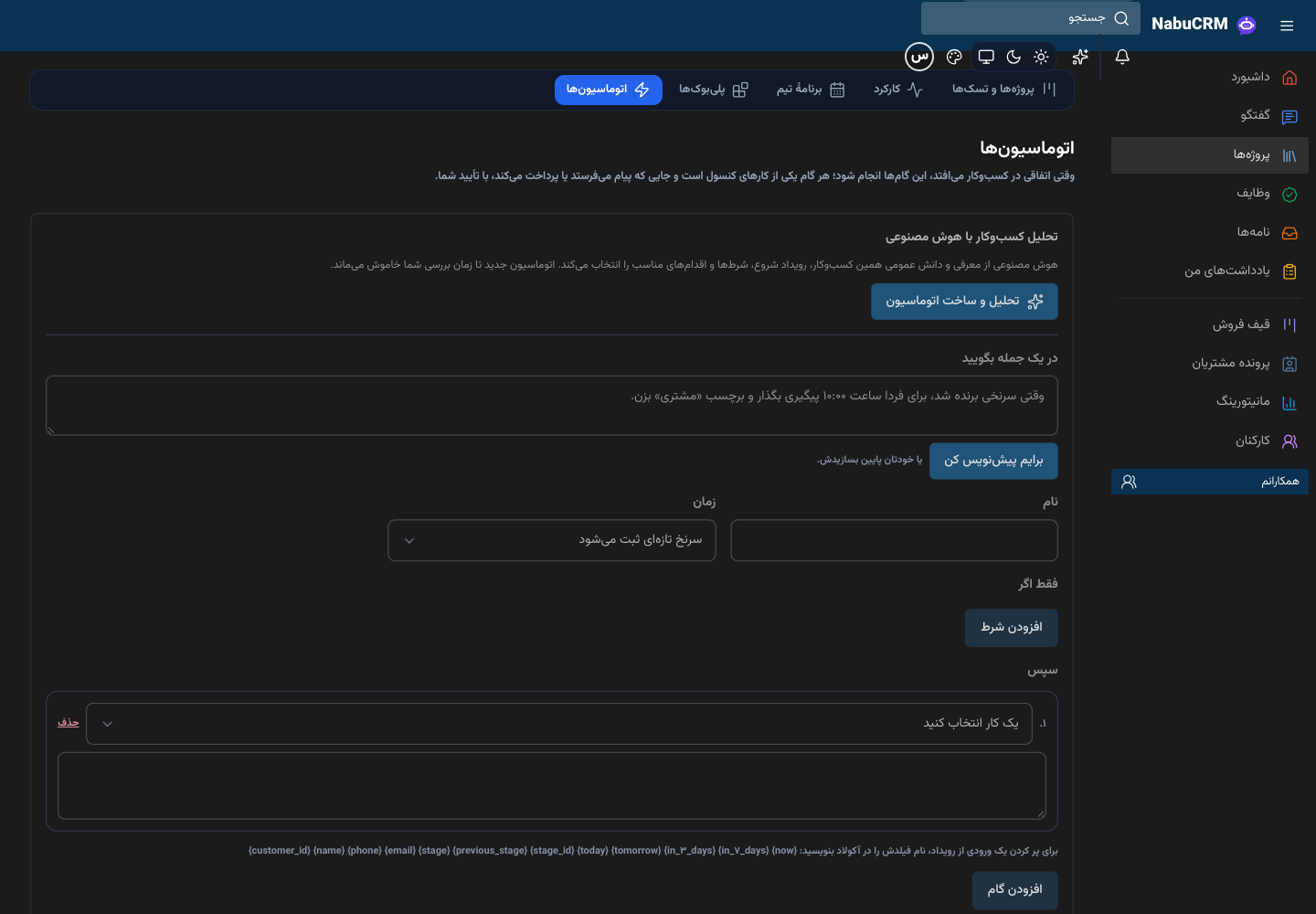
Task suggestions and playbook generation use the same business context, so suggestions can reflect what each business actually does.
How to use it
- Select the business in the panel and keep its description and shared knowledge up to date.
- In Automations, choose Analyze and create an automation. Read the new rule and switch it on when ready.
- In My work, open AI Task Generator and choose Suggest tasks for this business. You can get suggestions without writing an initial goal, review them and add selected tasks to a board.
- In Playbooks, Draft a starting set now uses the same business description and shared knowledge.
Good to know
Generated automations stay off and receive no permission to send or pay without approval. Duplicate rules are refused. Analysis uses the selected business's AI credit. Customer files, conversations, credentials and agent-private knowledge are excluded from the planning context. An invalid or missing AI response creates no new automation.