Cash register: counter sales with barcodes, receipts and offline mode
Ring up counter sales from your catalogue, scan barcodes, give a discount and print an 80 mm receipt. Each sale becomes a paid invoice and comes off stock, and if the internet drops, sales wait on the device.
Product update 2 min read
What changed
The new "Cash register" screen is built for selling at the counter. Items come from your own catalogue; find them by searching or scanning a barcode and tap to add them to "This sale". Set a discount, pick the payment button, and print the receipt.
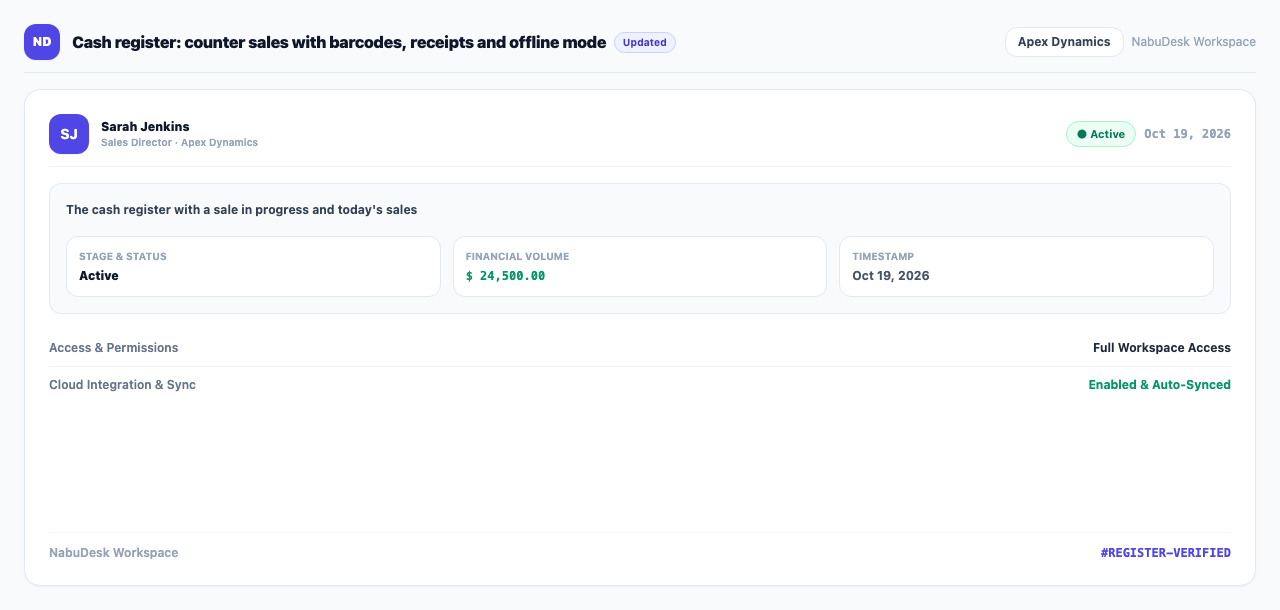
Each sale creates a paid invoice. When an item is linked to a stock item, it comes off stock at once. The bottom of the screen shows today's register total and the latest sales, and the sales show as income in "Books" too.
How to use it
- Under "Money and accounting", open Cash register.
- In "Search or scan a barcode", type an item name or scan its barcode. Tap the item to add it to "This sale".
- Enter a "Discount %" if needed.
- Tap the payment button (cash or card reader, for example) to record the sale.
- Press "Print the receipt".
Good to know
- For barcode lookup, fill in "Barcode or code (optional)" on the catalogue item. To take stock off automatically, link "Sold from stock (optional)".
- If the internet drops, "Offline — sales are kept here" appears, and the sales are sent once each when you are back online.
- At least one active payment mode is needed.
- "Point of sale (NabuPOS)" is an add-on, for roles allowed to sell at the counter.