The console works on a phone, and approvals happen inside ChatGPT and Claude
On a phone, Send and the microphone are always on screen, and you can speak your message. Approval cards have a fresh, readable design, and new ChatGPT and Claude connections make changes with the app's own confirmation.
Product update 3 min read
What changed
On a phone
- The bottom bar no longer covers the message box. Send, the microphone and the skill picker are always visible, and the page no longer scrolls for no reason.
- There is a microphone at the end of the message box: tap it, speak, and tap again to have the words written in the box. It works on every installation, because speech is turned into text on our own server.
- On a phone, the keyboard's Enter key starts a new line and the Send button sends. On a computer, Enter sends as before.
- The skill picker is a small chip that no longer takes the whole row, and the blue frame inside the message box is gone.
- Where voice calls are switched on, the call button sits beside the box with a sound-wave icon, so it isn't mistaken for the dictation microphone.
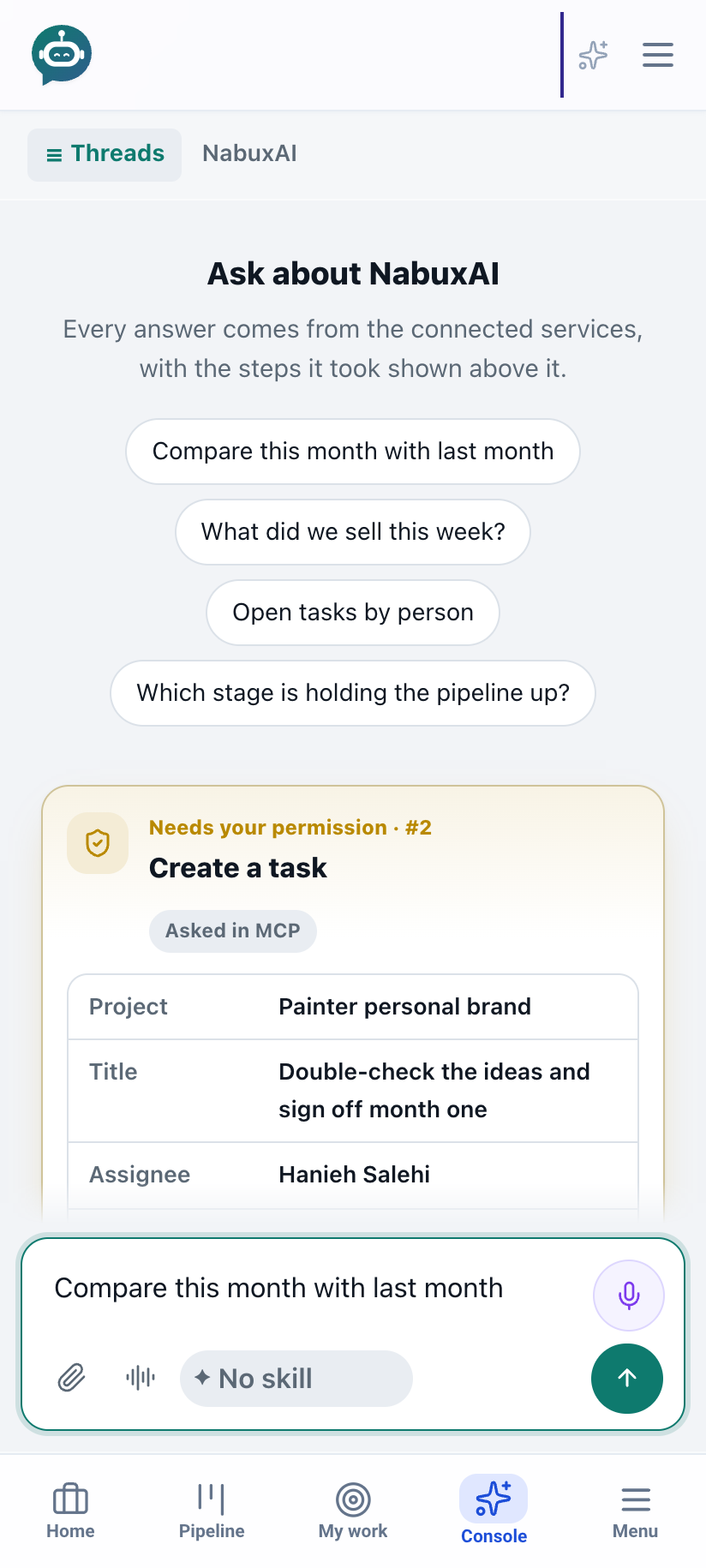
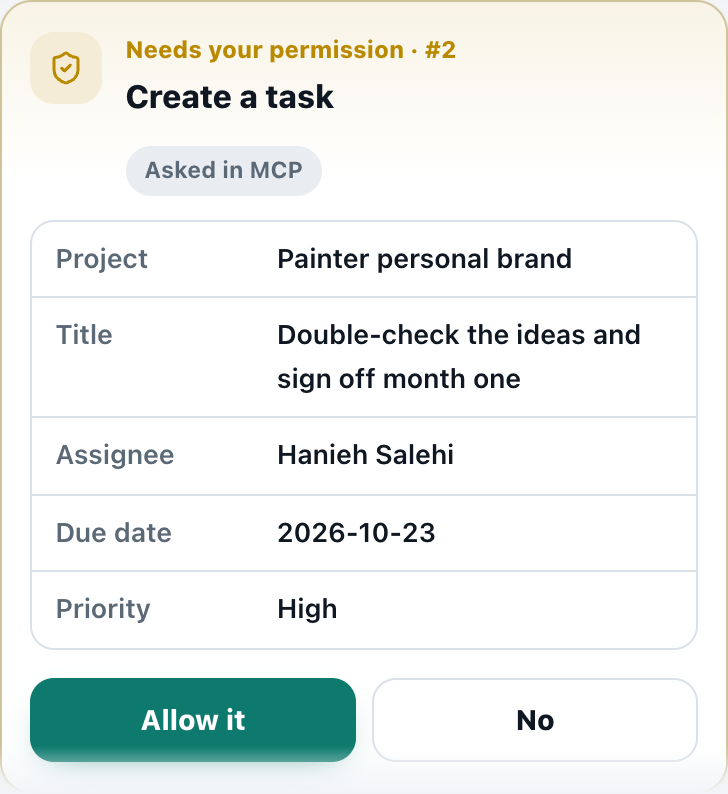
Approval cards
- Each card has a tinted header, a badge, its number and where it was asked. The details are a table with plain names (Project, Title, Assignee, Due date, Priority), and the priority is written as a word.
- Allow it and No are large, and on a phone they share the full width.
Approving inside ChatGPT and Claude
- When you connect ChatGPT or Claude to NabuOS, "Make changes without asking in NabuOS" is now ticked from the start. The app asks you in its own window before each change, so you don't need to go to the console.
- Keys made on the AI connections page work the same way.
- Connections made before this are not changed. Their replies now say that reconnecting once moves approval into the app.
How to use it
- On a phone, tap Console in the bottom bar.
- To speak a message, tap the microphone at the end of the box, talk, and tap again. The words appear in the box.
- Tap the green Send button.
- If something is waiting for approval, its card is above the box; tap Allow it or No.
- To approve inside ChatGPT or Claude, remove the NabuOS connection in that app once, connect again, and keep the ticked option.
Good to know
- If you'd rather approve every change in NabuOS, untick the option when connecting.
- Sensitive actions such as deletions, refunds and bulk changes still need approval first, even in this mode; ChatGPT or Claude asks you.
- To see which connections change things without a card in NabuOS, go to Business settings → AI connections; Revoke disconnects them.