NabuOS now connects to Gemini
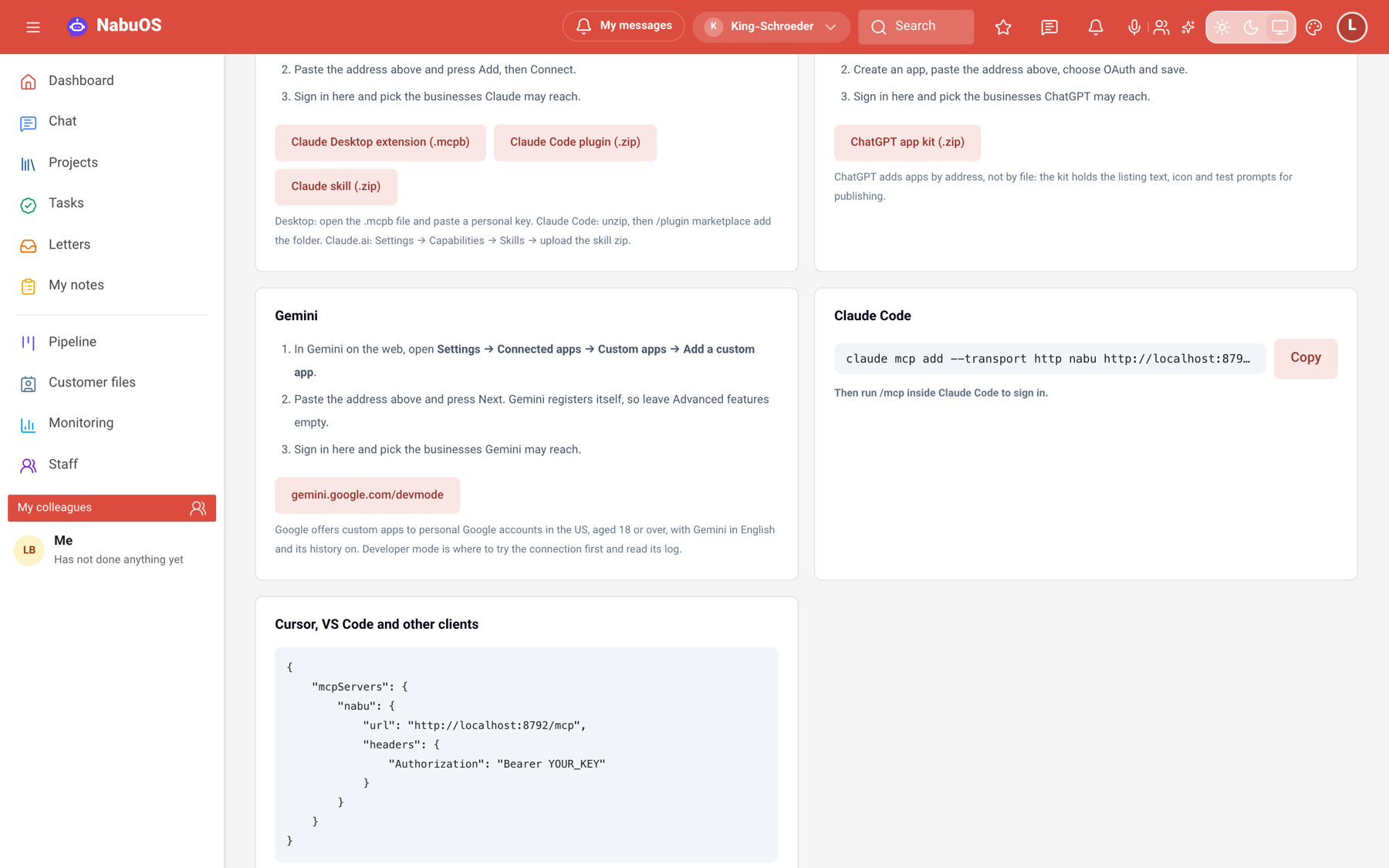
The AI connections page has a Gemini guide. Add the MCP server address in Gemini as a custom app, sign in here and pick the businesses; the console's tools are then in Gemini, and the connection no longer drops after a few weeks.
Product update 2 min read
What changed
Gemini can now connect to NabuOS the way Claude and ChatGPT do. It needs only the MCP server address: Gemini registers itself, and sign-in is the same NabuOS page where you pick the businesses it may reach.
Behind the scenes the server is ready for how Gemini signs in. Gemini keeps the refresh token it was first given and sends the same one every time. That used to look like a stolen token being reused, so the connection would have signed out on its first refresh. Gemini's token now stays and only its life is renewed; Claude and ChatGPT still get a new one on every refresh.
How to use it
- In NabuOS, open AI connections and copy the MCP server address.
- In Gemini on the web, open Settings → Connected apps → Custom apps → Add a custom app.
- Paste the address and press Next. Leave Advanced features empty.
- The NabuOS sign-in page opens: sign in and pick the businesses Gemini may reach.
Good to know
- For now Google offers custom apps to personal Google accounts in the US, aged 18 or over, with Gemini in English and its history on.
- To try the connection and read its log, use Developer mode at gemini.google.com/devmode.
- Anything that changes data asks you first, as with every other client. Disconnect it under Connected apps on the same page.