Meeting notetaker: draft minutes with decisions and tasks from a recording
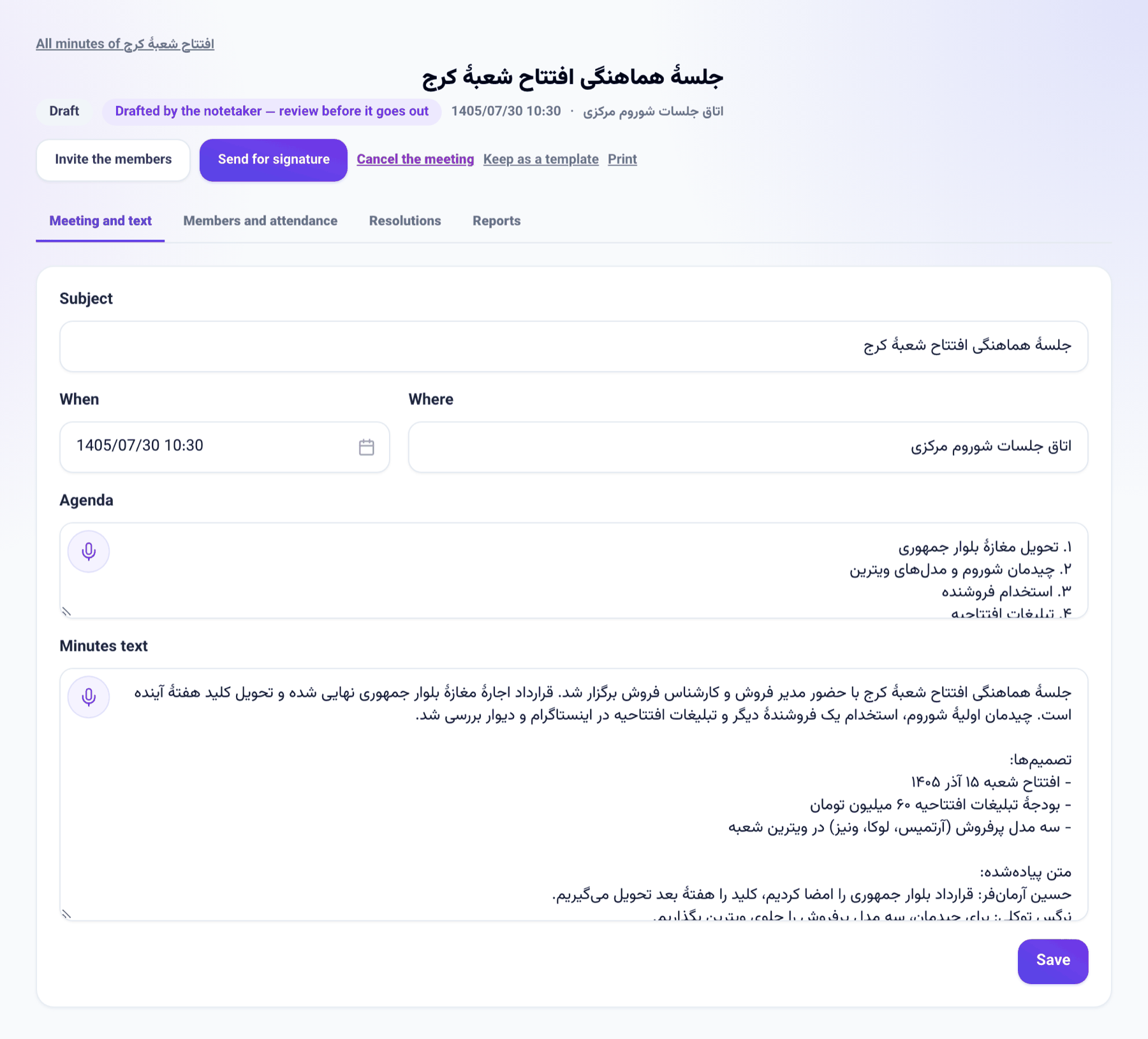
Record a meeting in a voice room, or upload the recording of a meeting held in person. It is transcribed and drafted into minutes on the project — a summary, the decisions and each person's action items with their dates — for you to review and hand out.
Product update 2 min read
What changed
- Voice rooms have a Record for minutes button. Pick the project and start recording; every voice in the room is recorded.
- The moment recording starts, everybody in the room sees that the meeting is being recorded for its minutes. The notice stays up until the recording stops.
- Stop and draft minutes hands the file to the notetaker. A few minutes later draft minutes are on that project: a subject, a summary of the discussion, the decisions, the full transcript, and resolutions each given to the colleague named in the meeting, with their date.
- For a meeting held in person, upload its recording on the project's Meeting minutes page.
- A draft hands nothing out. After review, press Turn the resolutions into tasks now, or send the minutes for signature, which does the same.
How to use it
In a voice room
- Open the room and press Join the room.
- Pick the project the minutes go on and press Record for minutes.
- At the end press Stop and draft minutes. A link to the project's minutes is shown.
A meeting held in person
- Go to the project's Meeting minutes.
- Under Draft minutes from a recording pick the file and press Upload and draft.
- You are notified when the draft is ready. Open it, correct the text and resolutions, and turn the resolutions into tasks.
Good to know
- A recording can be up to 25 MB; a voice room records at speech quality, about an hour and a half in that size.
- Transcribing and writing the minutes use the business's AI credit. Without the write-up the full transcript becomes the draft and you add the resolutions yourself.
- Only a seat that may change tasks starts a recording, and only onto a project of the room's business it can open.
- Leaving the room mid-recording sends what was recorded so far while the page stays open; stop the recording before you leave.
- Each resolution becomes a task once; signing the minutes later makes no duplicates.