Partner organizations: share a project or a lead with another business
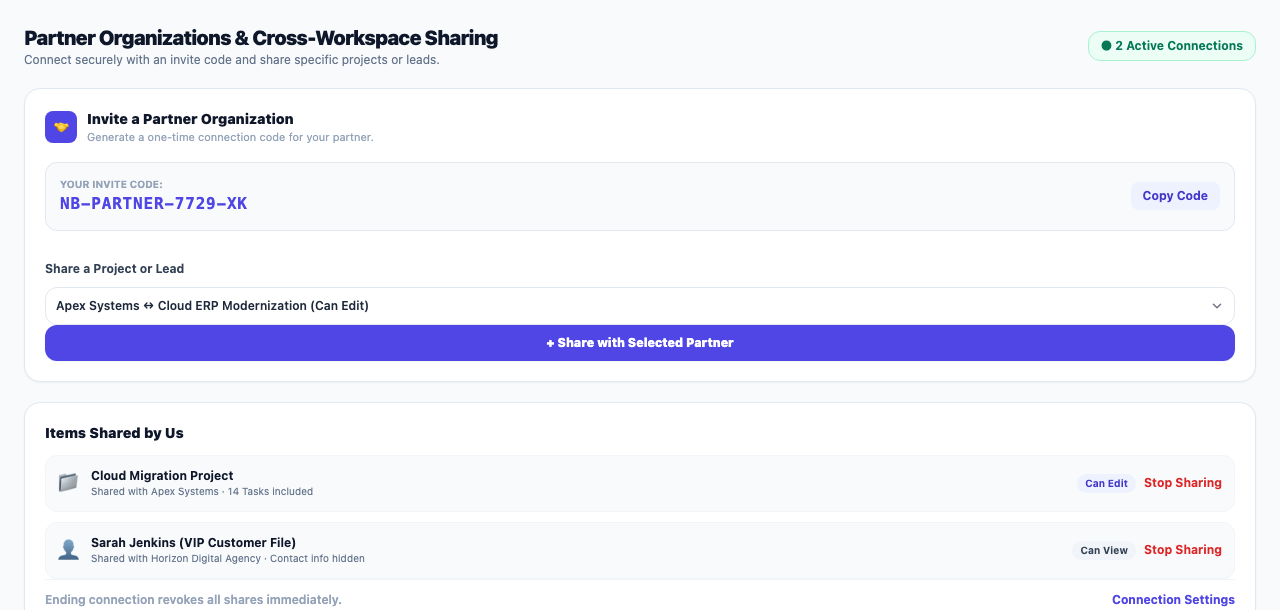
Connect your business to another one on the same platform with an invite code, then share one project or one lead at a time with the access you choose. Ending the connection stops every share at once.
Product update 2 min read
What changed
Sometimes you work on a project or a customer with another company: a contractor, a sales agent, a partner business. You can now share just that project or lead with them, without them seeing anything else of yours:
- Connect with an invite code: one side creates a code and the other accepts it.
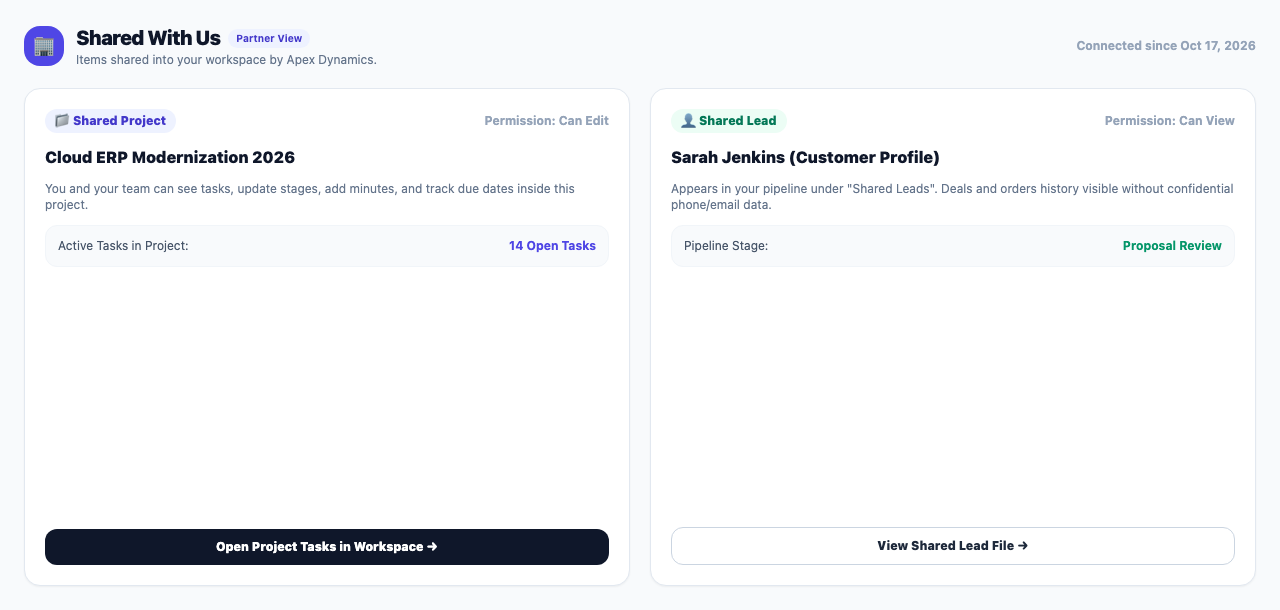
- Share a project: the project, with all its tasks, appears under "Shared with us" in the partner's projects.
- Share a lead: the lead appears on the partner's pipeline and on a "Shared lead" page. You choose whether the phone, email and address go with it.
- Permission: "Can view", "Can comment" or "Can edit".
How to use it
- Under "Work" and "Team management", open Partner organizations.
- Under "Invite a partner", press "Create an invite code" and send the code to your partner.
- The partner enters it under "Accept a code" on their own page and presses "Connect".
- Under "Share with a partner", choose the partner, what to share ("Project" or "A lead"), the item and the "Permission", and press the button at the bottom of the form.
- "Shared by us" and "Shared with us" are listed further down the page; end any share with "Stop sharing".
Good to know
- Only projects and leads are shared. Tasks are visible only because they sit inside a shared project.
- "End connection" stops every share on that connection at once.
- This page is for business managers.