Send an Instagram page or a Divar ad straight to the phone app
On Android the NabuOS app is now in the phone's share sheet: share an Instagram profile, a Divar ad or a Bale account to the app and Add a lead opens with that link in it. It needs the new version of the app.
Product update 2 min read
What changed
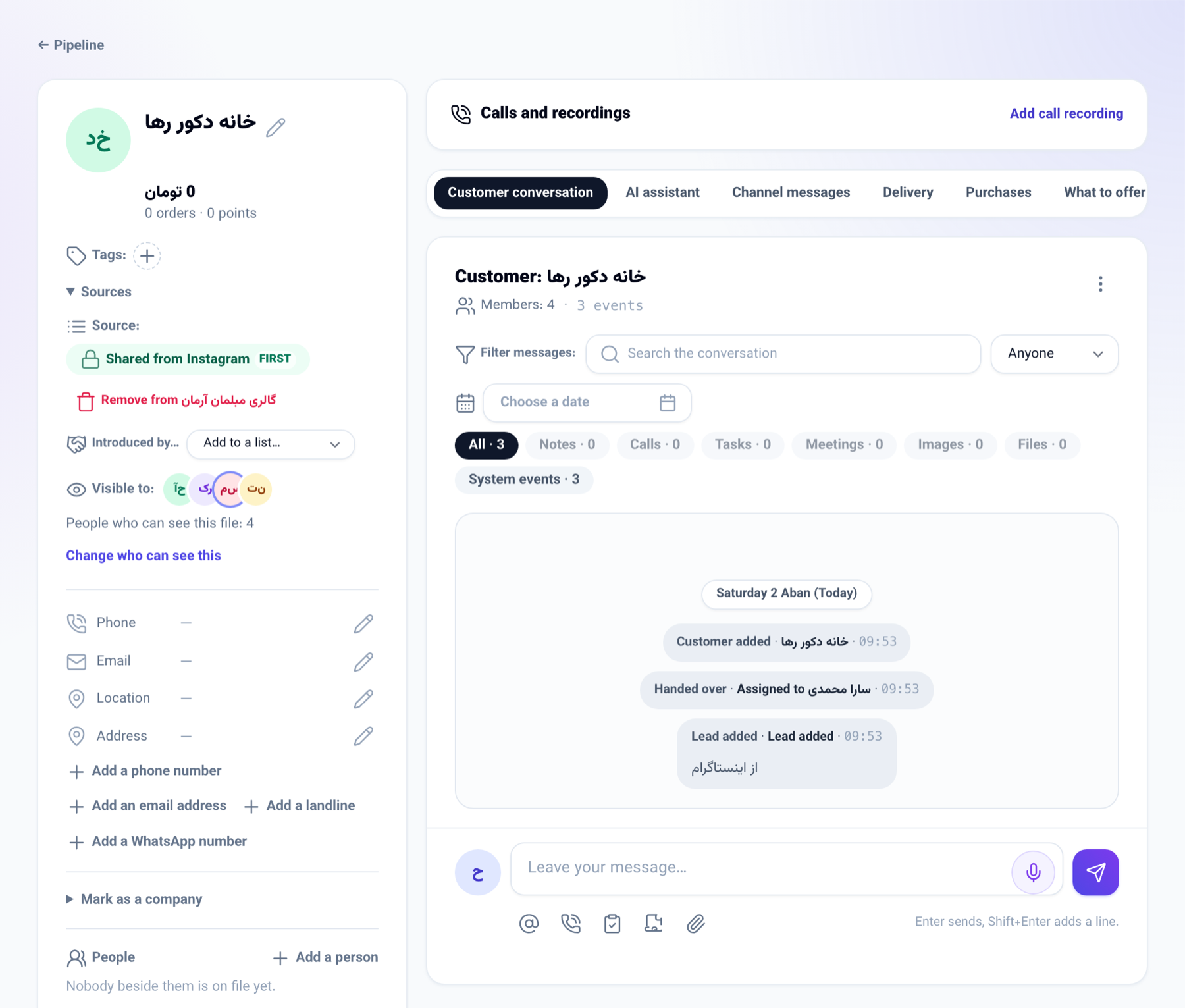
Until now, turning an Instagram page or a Divar ad into a lead meant copying the link, opening the NabuOS app and pasting it into Add a lead. On Android you now press share in that app and pick NabuOS. The app opens on the Customers tab with Add a lead showing the link or text in the Link or text field.
Saving it works as it always did: the server finds the name, the number and the page's handle in the link and the text, and files the person as a lead.
How to use it
- In Instagram, Divar, Bale or any app that shares a link or text, press share.
- Pick NabuOS from the list of apps.
- Add a lead opens with what you shared. Look it over and correct anything you need to.
- Press Save lead. The person's file opens.
Good to know
- Android only for now; not on iPhone yet.
- Links and text only, not photos or files. For a business card, use Photo of a business card in the same sheet.
- It needs version 0.3.0 of the Android app: download it from dl-crm.nabuxai.com and install it over the old one. Earlier versions do not appear in the share sheet.
- You need to be signed in to the app: the lead is filed under the business the app works in.