The task dialog on the customer file works again
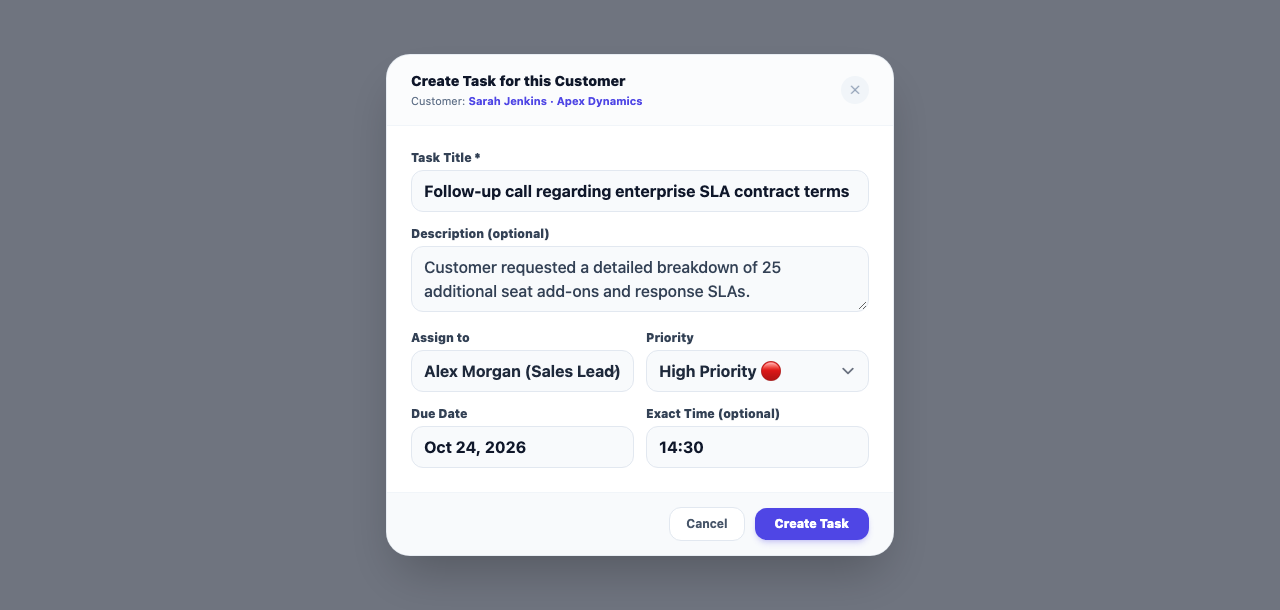
On the customer file, the new-task dialog only let you type in the description and its Create task button did nothing. Every field can be filled again and the task is saved.
Product update 1 min read
What changed
After the last update, the dark backdrop behind dialogs was drawn on top of the dialog itself. In the task dialog only "Description (optional)" could be typed in; clicking any other field or Create task landed on the backdrop and closed the dialog. That is fixed, and every dialog in the panel (logging a call, meeting minutes and the rest) works again.
How to use it
- Open a customer file and, in the bar under the conversation, tap Hand out a task about this customer.
- Fill in the title, description, Who does it, due date, time and priority.
- Tap Create task. The task appears in the customer's history and on the assignee's My work.
Good to know
- The fix applies to every dialog in the panel, not only this one.
- Thank you to the person who reported it: it was exactly as described.