Team and payroll: staff files, attendance, payslips and job ads
Keep a staff file for every colleague with job title, start date, contract and base salary. Clock in and out with one button, make the month's payslips in one go and pay them, and post job ads with a public page.
Product update 2 min read
What changed
The new "Team and payroll" screen has four parts:
- Staff files: each colleague's job title, start date, contract, base salary and emergency contact, plus one-to-five-star reviews.
- Attendance: everyone clocks in and out with one button.
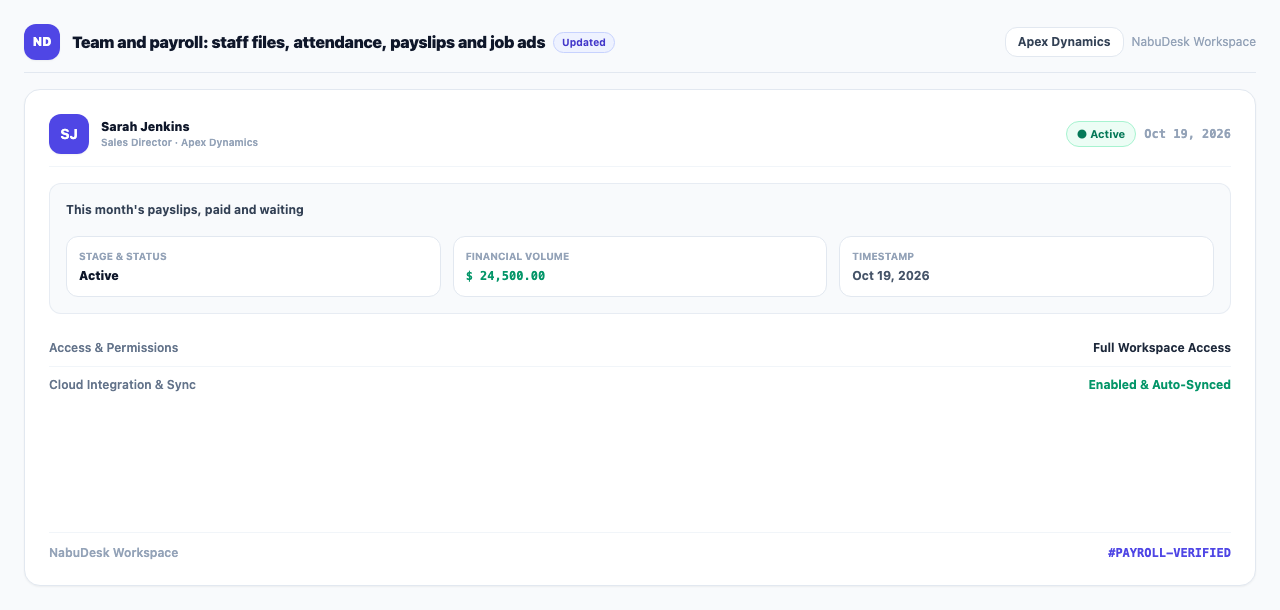
- Payroll: "Make this month's payslips" creates them for everyone. Edit additions and deductions, and "Pay" records the payslip as a salaries expense in the books.
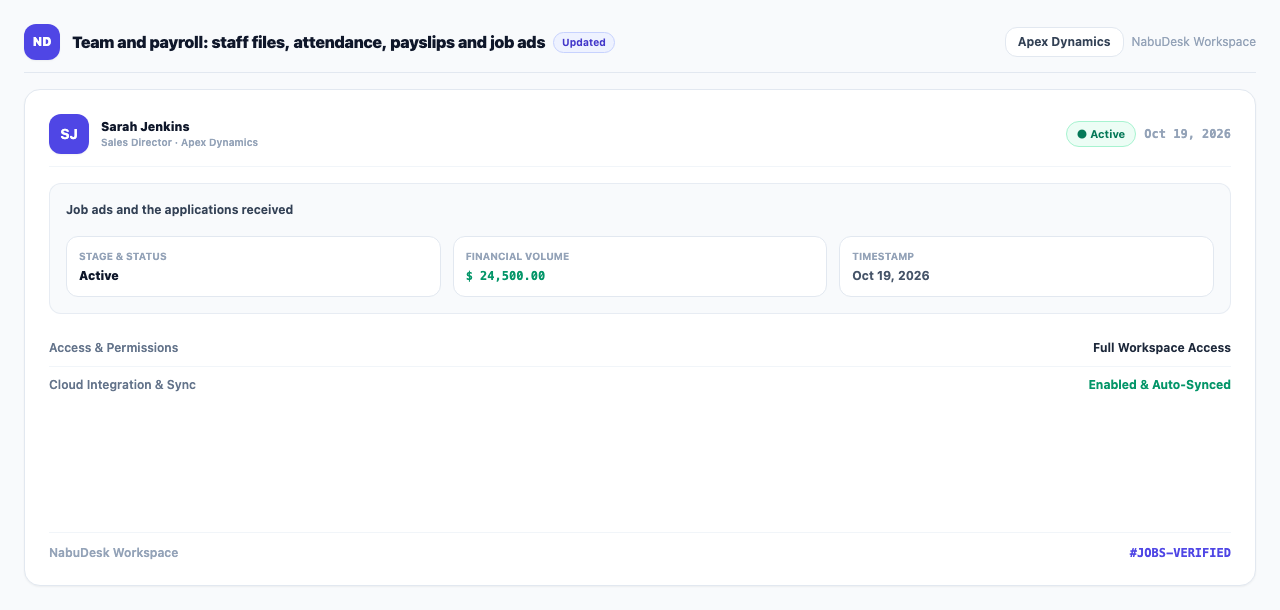
- Jobs: "Post the job" publishes a public page for the ad, and every applicant lands on the "Hiring board".
How to use it
- Under "Work" and "Team management", open Team and payroll.
- On the first tab, open and complete each colleague's file.
- In Attendance, press "Clock in" each day and "Clock out" when you finish.
- In Payroll, choose the month, press "Make this month's payslips", pick the account to pay from, and press "Pay" beside each payslip.
- In Jobs, write the title and description and press "Post the job". Share the page link on social media.
Good to know
- Payroll insurance and tax are not calculated here; you type additions and deductions yourself.
- The Payroll and Jobs tabs are for people allowed to manage the team; staff files and attendance are visible to every member.
- "NabuHR" is an add-on.