Team chat can be archived, filed in folders, and split into topics
Conversations with people who left the business move into Archived and stay read-only. Everyone else can archive, pin, mute and file their own chats, and a group admin can turn a conversation into topics.
Product update 3 min read
What changed
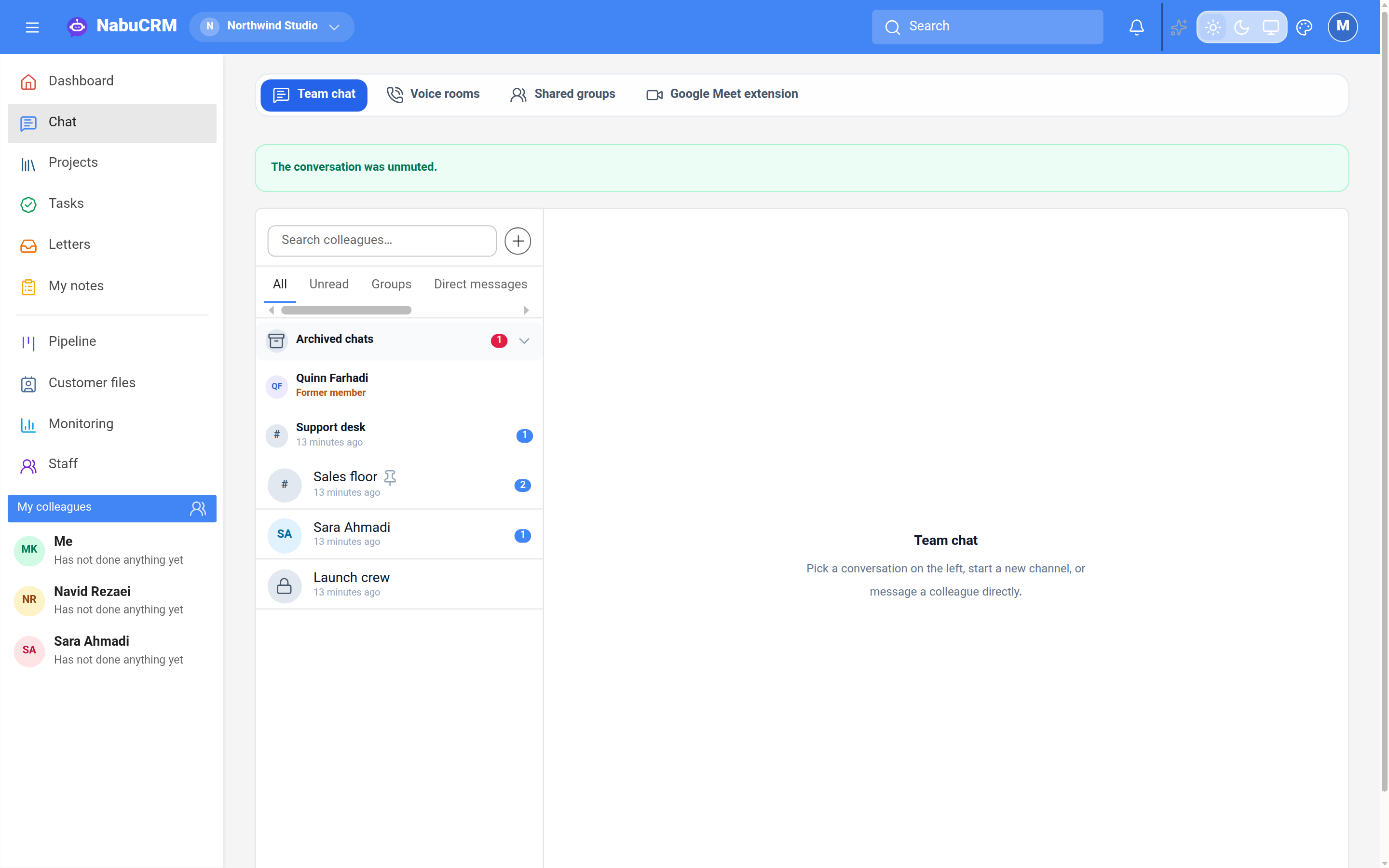
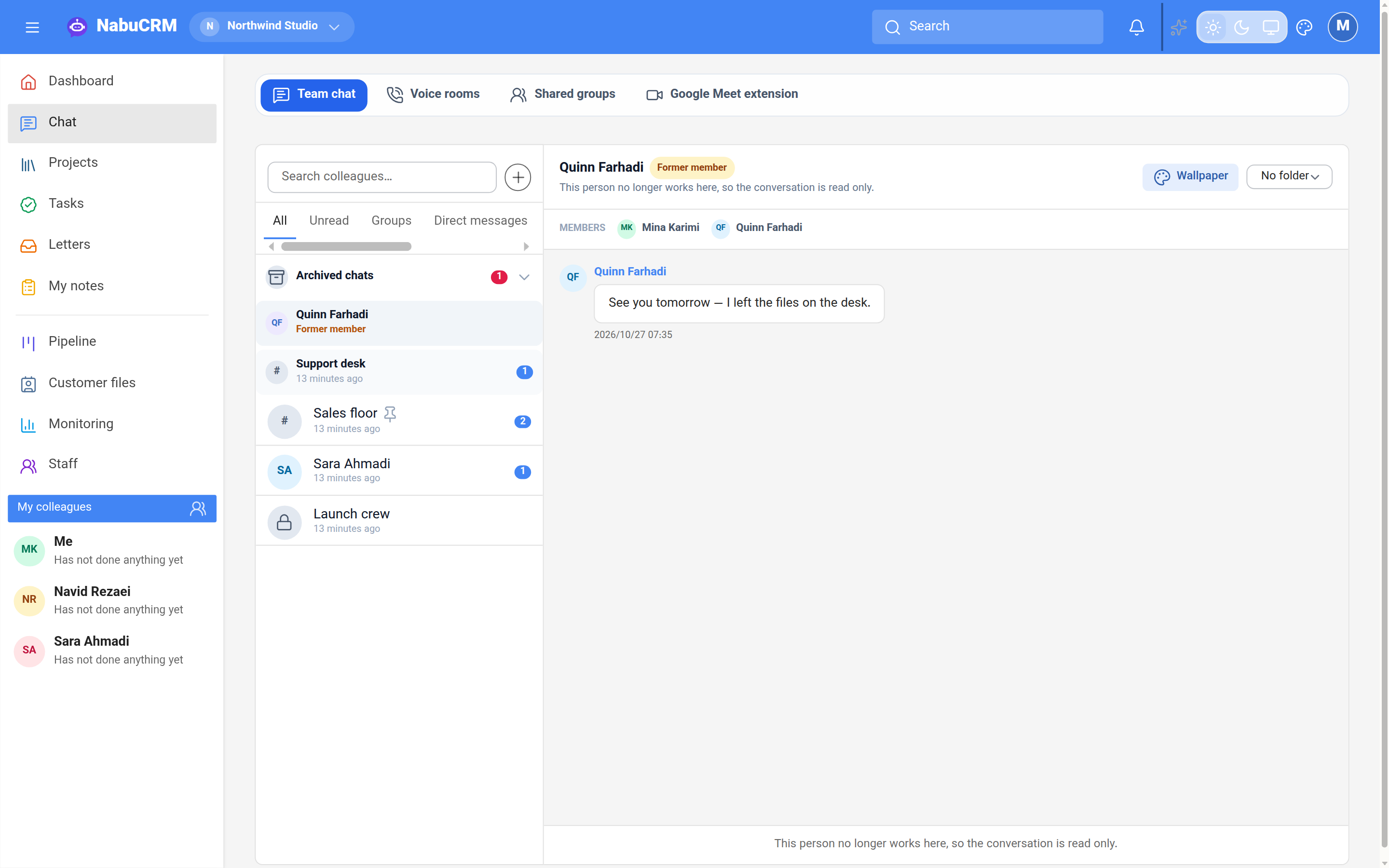
People who left no longer sit in the chat list. A direct conversation with someone who is no longer on this business stays in the history, but it leaves the main list on its own and lands in Archived, marked Former member. It is read-only: nothing new can be sent, and putting it back on the main list is not offered.
Archived, like a folder you open when you mean to. Archived chats sits collapsed under the list. Opening it shows what you archived yourself and the former-member conversations. Archiving is yours alone — a colleague still sees the same chat in their own list until they archive it.
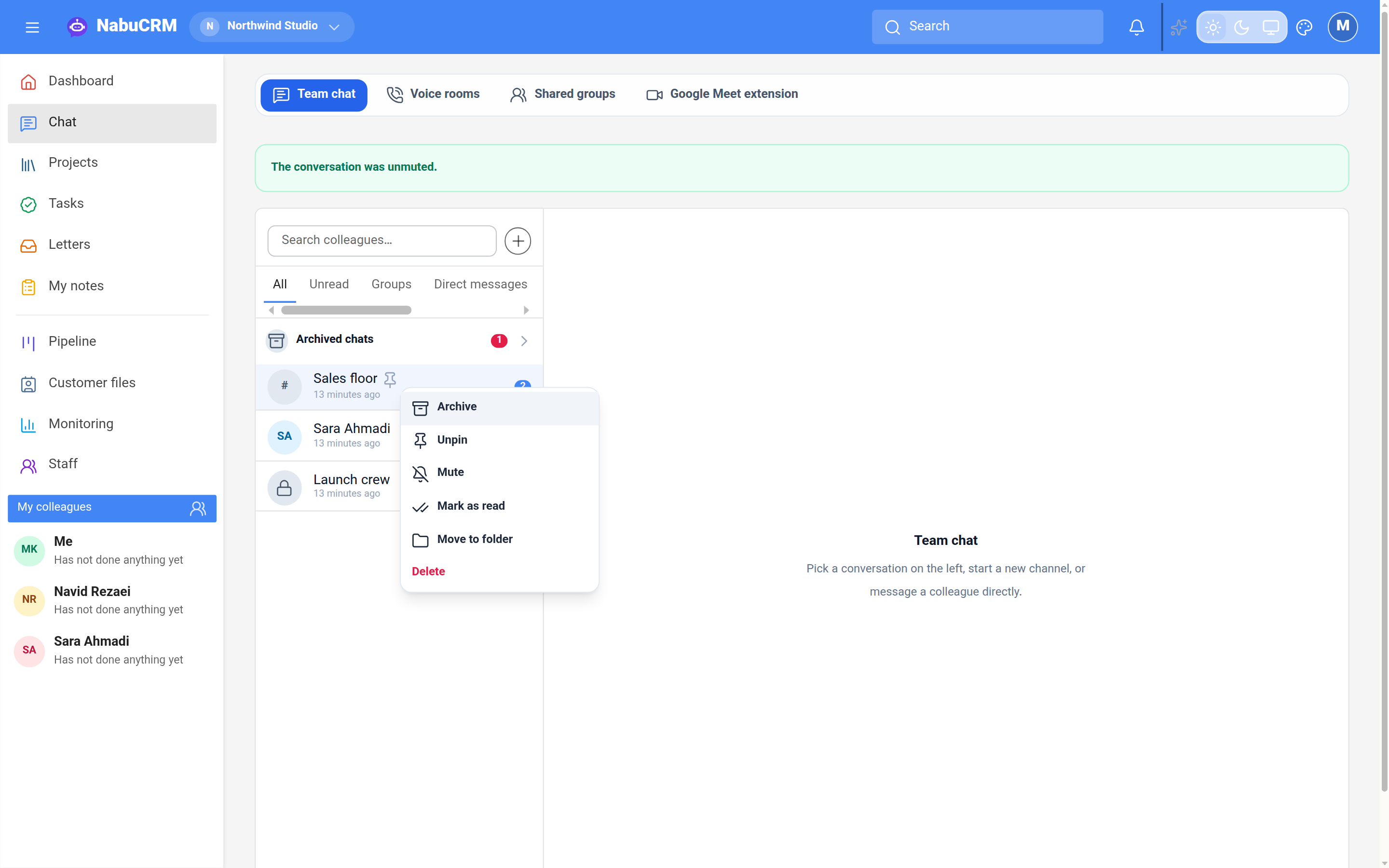
A menu on the conversation. Right-click a chat, or hold it on a phone, for Archive, Pin, Mute, Mark as read or unread, and Move to folder. Delete and Leave group show only when you are allowed to do them.
Folders, plus the built-in tabs. All, Unread, Groups and Direct messages stay as tabs. A folder you create — a name and an optional icon — is another tab, and it belongs to you. One chat sits in one of your folders. Drag is not required: Move to folder files it, and the arrows on the tab move the folder earlier or later.
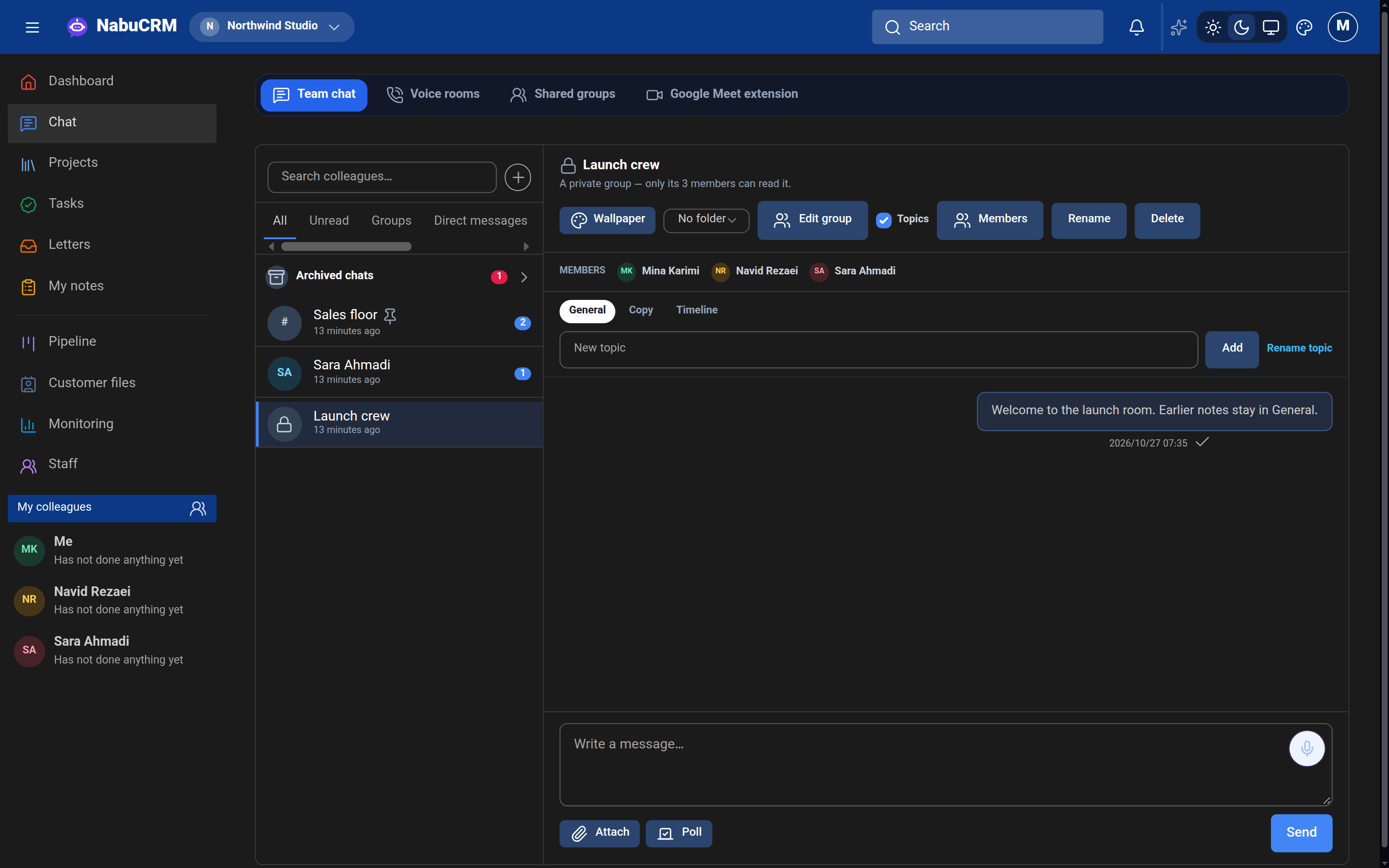
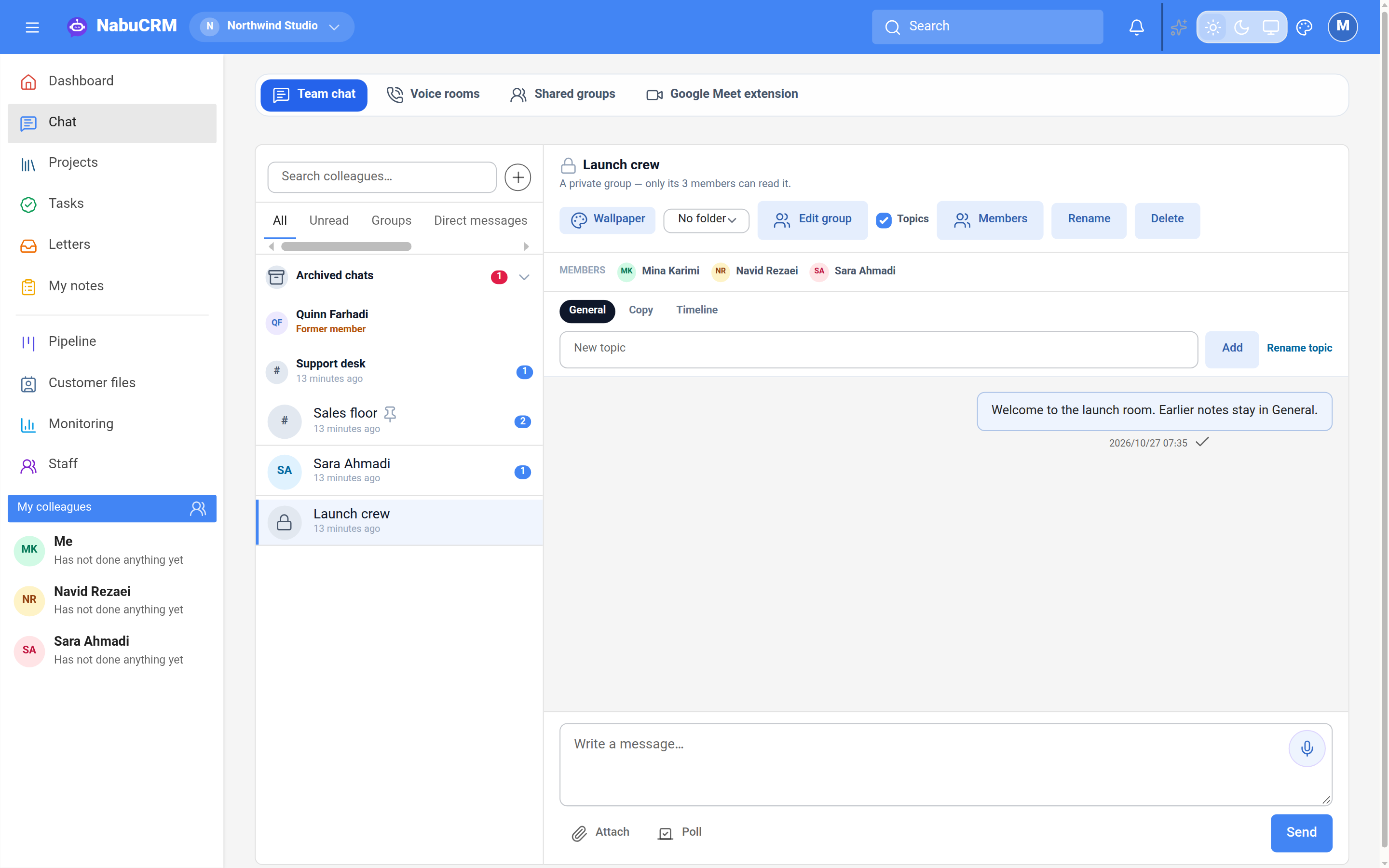
Groups and topics. A conversation can become a private group: rename it, choose who of the current team is in it, and set a picture. A group admin can turn Topics on. What was already said goes into General, and each new topic is its own thread. General stays open; any other topic can be closed.
How to use it
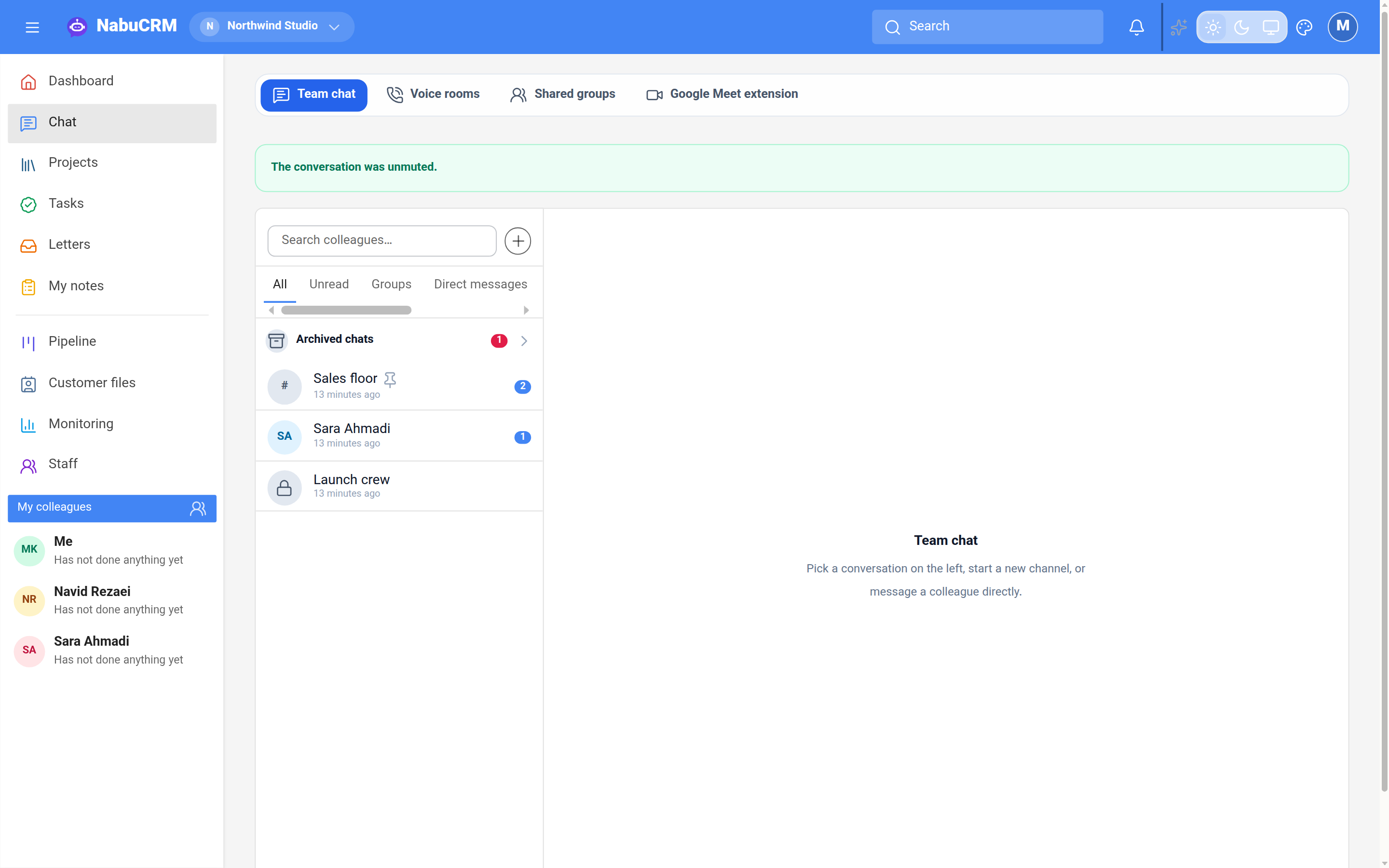
- Open Team chat from the menu.
- Right-click a conversation (hold it on a phone). Archive, Pin, Mute, Mark as read and Move to folder are in that menu.
- Open Archived chats at the bottom of the list for anything you archived, and for people who no longer work here.
- To file chats, use New folder above the list, then Move to folder on a conversation. All, Unread, Groups and Direct messages filter the same list.
- On a channel, use Turn into a group to name it and set a picture. A group admin turns Topics on; General keeps the earlier messages, and each topic has its own thread.
Good to know
- A former member's conversation cannot be unarchived onto the main list, and it cannot be turned into a group. The history stays.
- Topics, the group name, its members and its picture are for a group admin (or a seat that manages the team). Everyone in the group can read and, when the topic is open, write.
- Custom folders, pins, mutes and archives are stored per person. The same conversation can be pinned for you and sitting in a folder for someone else.
- Closing a topic stops new messages there. General cannot be closed.
- The list, the menu and the topics follow the panel's light and dark theme.